


扩展自定义操作
在 FcDesigner 设计器中,您可以通过多种方式扩展自定义操作按钮,以增强业务逻辑和用户体验。以下是如何实现这些功能的详细示例。

保存表单
您可以通过在设计器中添加一个保存按钮来实现保存功能。点击保存按钮后会触发 save 事件,您可以在事件处理函数中编写保存逻辑。
vue
<template>
    <fc-designer ref="designer" @save="handleSave" :config="config"></fc-designer>
</template>
<script>
    export default {
        name: 'app',
        data() {
            return {
                config: {
                    // 显示保存按钮
                    showSaveBtn: true
                },
            };
        },
        methods: {
            // 保存事件处理函数
            handleSave() {
                // 处理表单保存逻辑
                console.log('保存按钮被点击');
                // 例如,您可以将表单数据发送到服务器
                // axios.post('/save', this.$refs.designer.getFormData());
            }
        }
    };
</script>
配置扩展
您可以通过 props.handle 配置扩展操作按钮。每个按钮都有一个 label 和一个 handle 函数,用于定义按钮的行为。
vue
<template>
    <fc-designer ref="designer" :handle="handle"></fc-designer>
</template>
<script>
    export default {
        name: 'app',
        data() {
            return {
                handle: [
                    {
                        // 自定义操作按钮:中英切换
                        label: '中英切换',
                        handle: () => {
                            // 处理中英文切换逻辑
                            console.log('中英切换按钮被点击');
                            // 例如,切换界面语言
                        },
                    },
                    {
                        // 自定义操作按钮:选择表单
                        label: '选择表单',
                        handle: () => {
                            // 处理选择表单逻辑
                            console.log('选择表单按钮被点击');
                            // 例如,打开表单选择对话框
                        },
                    },
                ],
            };
        }
    };
</script>
插槽扩展
设计器提供了多个插槽,允许您在不同位置插入自定义内容,提供更高的灵活性。
handle 插槽
您可以通过 handle 插槽扩展自定义按钮。使用插槽可以插入任意自定义组件或按钮。
vue
<template>
    <fc-designer ref="designer">
        <template #handle>
            <el-button @click="customAction">自定义按钮</el-button>
        </template>
    </fc-designer>
</template>
<script>
    export default {
        name: 'app',
        methods: {
            // 自定义按钮点击事件处理函数
            customAction() {
                console.log('自定义按钮被点击');
                // 执行自定义操作
            }
        }
    };
</script>
header 插槽
设计器顶部区域现已支持自定义插槽,可用于扩展品牌信息、快捷操作入口或业务相关的自定义内容。该插槽位于设计器主内容区域的顶部,在表单渲染之前显示。
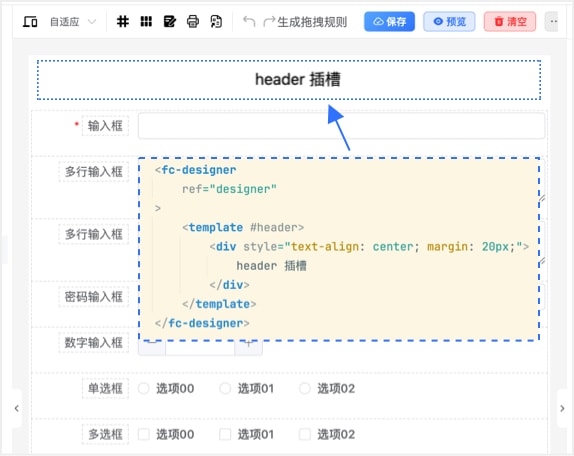
vue
<template>
    <fc-designer ref="designer">
        <template #header>
            <div class="custom-header">
                <!-- 品牌信息 -->
                <div class="brand-info">
                    <img src="/logo.png" alt="Logo" />
                    <span>我的表单设计器</span>
                </div>
                <!-- 快捷操作 -->
                <div class="quick-actions">
                    <el-button size="small" @click="handleQuickSave">快速保存</el-button>
                    <el-button size="small" @click="handleExport">导出模板</el-button>
                </div>
            </div>
        </template>
    </fc-designer>
</template>
<script>
    export default {
        name: 'app',
        methods: {
            handleQuickSave() {
                // 快速保存逻辑
                console.log('快速保存');
            },
            handleExport() {
                // 导出模板逻辑
                console.log('导出模板');
            }
        }
    };
</script>
<style scoped>
.custom-header {
    display: flex;
    justify-content: space-between;
    align-items: center;
    padding: 12px 20px;
    background: #f5f5f5;
    border-bottom: 1px solid #e0e0e0;
}
.brand-info {
    display: flex;
    align-items: center;
    gap: 8px;
}
.brand-info img {
    height: 24px;
}
.quick-actions {
    display: flex;
    gap: 8px;
}
</style>
使用场景:
- 品牌展示:在顶部显示公司 Logo、产品名称等品牌信息
- 快捷操作:提供常用功能的快捷入口,如快速保存、导出、分享等
- 业务信息:显示当前表单状态、版本信息、操作提示等
- 导航入口:添加返回、帮助、设置等导航按钮
使用场景示例
表单数据保存
在企业应用中,通常需要在表单设计器中实现动态数据的保存。例如,在一个OA系统中,用户可以在设计器中编辑表单并保存其设置。使用 showSaveBtn 配置,您可以在设计器中添加一个保存按钮,用户点击后自动将表单数据提交到服务器。
vue
<template>
    <fc-designer ref="designer" @save="handleSave" :config="config"></fc-designer>
</template>
<script>
    export default {
        name: 'app',
        data() {
            return {
                config: {
                    showSaveBtn: true
                },
            };
        },
        methods: {
            handleSave() {
                const formData = this.$refs.designer.getFormData();
                console.log('表单数据:', formData);
                // 将数据提交到服务器
                axios.post('/save', formData).then(response => {
                    console.log('保存成功:', response.data);
                }).catch(error => {
                    console.error('保存失败:', error);
                });
            }
        }
    };
</script>
表单选择对话框
在某些应用中,用户可能需要在设计器中选择预定义的表单模板。您可以通过插槽扩展自定义按钮来实现表单选择对话框
vue
<template>
    <fc-designer ref="designer">
        <template #handle>
            <el-button @click="openFormSelectDialog">选择表单</el-button>
        </template>
    </fc-designer>

    <!-- 表单选择对话框 -->
    <el-dialog title="选择表单" :visible.sync="dialogVisible">
        <el-select v-model="selectedForm" placeholder="请选择表单">
            <el-option
                v-for="form in formOptions"
                :key="form.value"
                :label="form.label"
                :value="form.value">
            </el-option>
        </el-select>
        <span slot="footer" class="dialog-footer">
            <el-button @click="dialogVisible = false">取消</el-button>
            <el-button type="primary" @click="confirmSelection">确定</el-button>
        </span>
    </el-dialog>
</template>

<script>
    export default {
        name: 'app',
        data() {
            return {
                dialogVisible: false,
                selectedForm: '',
                formOptions: [
                    { label: '表单模板 A', value: 'formA' },
                    { label: '表单模板 B', value: 'formB' }
                ]
            };
        },
        methods: {
            openFormSelectDialog() {
                this.dialogVisible = true;
            },
            confirmSelection() {
                console.log('选中的表单:', this.selectedForm);
                this.dialogVisible = false;
            }
        }
    };
</script>
通过这些方法,您可以根据业务需求自定义和扩展 FcDesigner 设计器的操作按钮,使其更符合实际使用场景。